A complete step-by-step guide to enabling the Attio integration, authorizing access, and importing CRM leads into BrandJet AI.
Quick Answer To connect Attio to BrandJet AI, go to Settings > Integrations, enable Attio, select Connect with Attio, confirm the OAuth access request in Attio, and press Done. Then open CRM, choose Import Leads, select CRM Import, choose Attio, pick the desired objects or lists, select records, and continue. |
|---|
Why Use the Attio Integration in BrandJet AI?
The Attio integration helps teams bring CRM data directly into BrandJet AI so that people, companies, objects, lists, and selected records can be used as leads inside the BrandJet AI CRM. Instead of manually copying CRM data, you can connect your Attio workspace and use the built-in import flow to pull the records you need.
This guide walks through the complete process, from enabling Attio in the BrandJet AI integration settings to importing leads through the CRM import screen.
Before You Start
Before connecting Attio to BrandJet AI, make sure the following are ready:
Access to your BrandJet AI account.
Access to the Attio workspace you want to connect.
Permission to authorize apps and read CRM records in Attio.
A clear idea of whether you want to import people, companies, objects, lists, or selected records.
How to Connect Attio to BrandJet AI
The first part of the setup is completed inside BrandJet AI settings. Once Attio is enabled, BrandJet AI opens a secure OAuth authorization flow so you can grant access to the correct Attio workspace.
Step 1: Open BrandJet AI Integration Settings
Go to https://www.brandjet.ai/settings/integrations and open the Integrations tab inside Settings & Notifications.
From this page, find the Attio integration card. The Attio card is used to connect your Attio account so BrandJet AI can import leads.
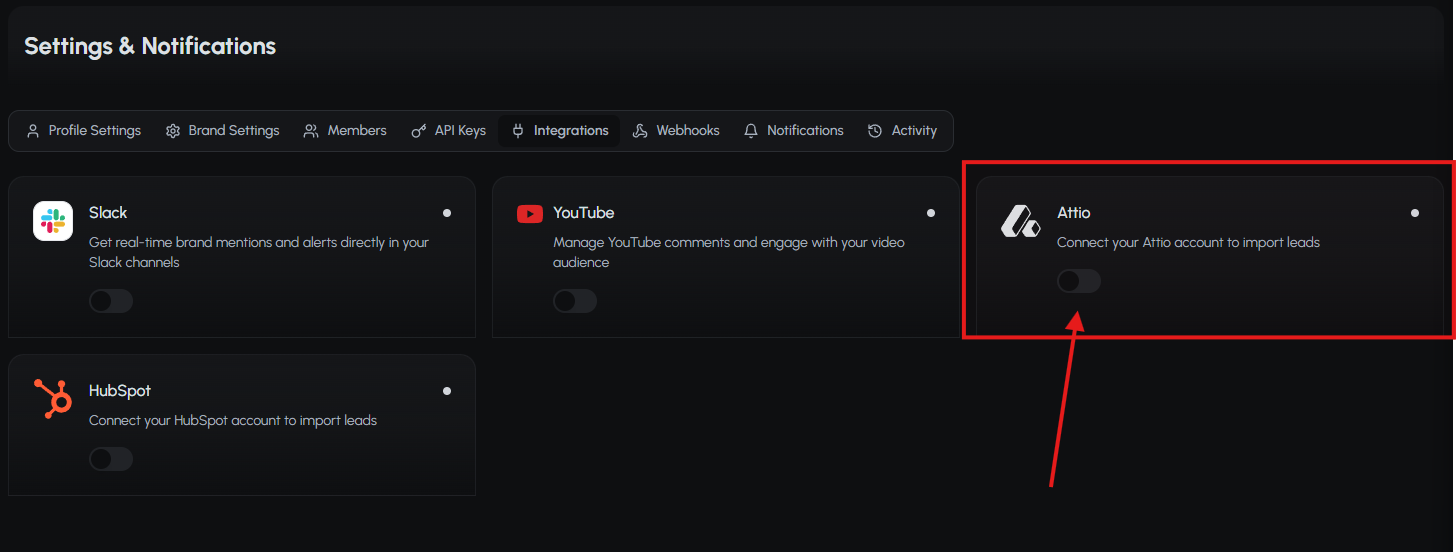
Screenshot 1: Enable Attio from the BrandJet AI Integrations settings page.
Step 2: Enable Attio
Toggle the Attio integration on. This opens the connection prompt where you can start the Attio authorization process.
Step 3: Click Connect with Attio
When the Connect Attio pop-up appears, select Connect with Attio. This begins the secure OAuth connection flow and redirects you to Attio for workspace authorization.
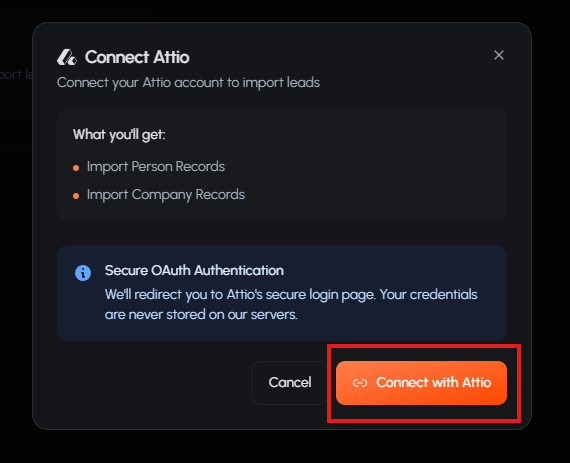
Screenshot 2: Select Connect with Attio to begin the OAuth connection flow.
Step 4: Confirm Access in Attio
Attio will show an access request for BrandJet AI. Review the workspace and permissions shown on the screen. When everything looks correct, press Confirm.
Important Confirm that the selected Attio workspace is the one you want to connect before approving access. |
|---|
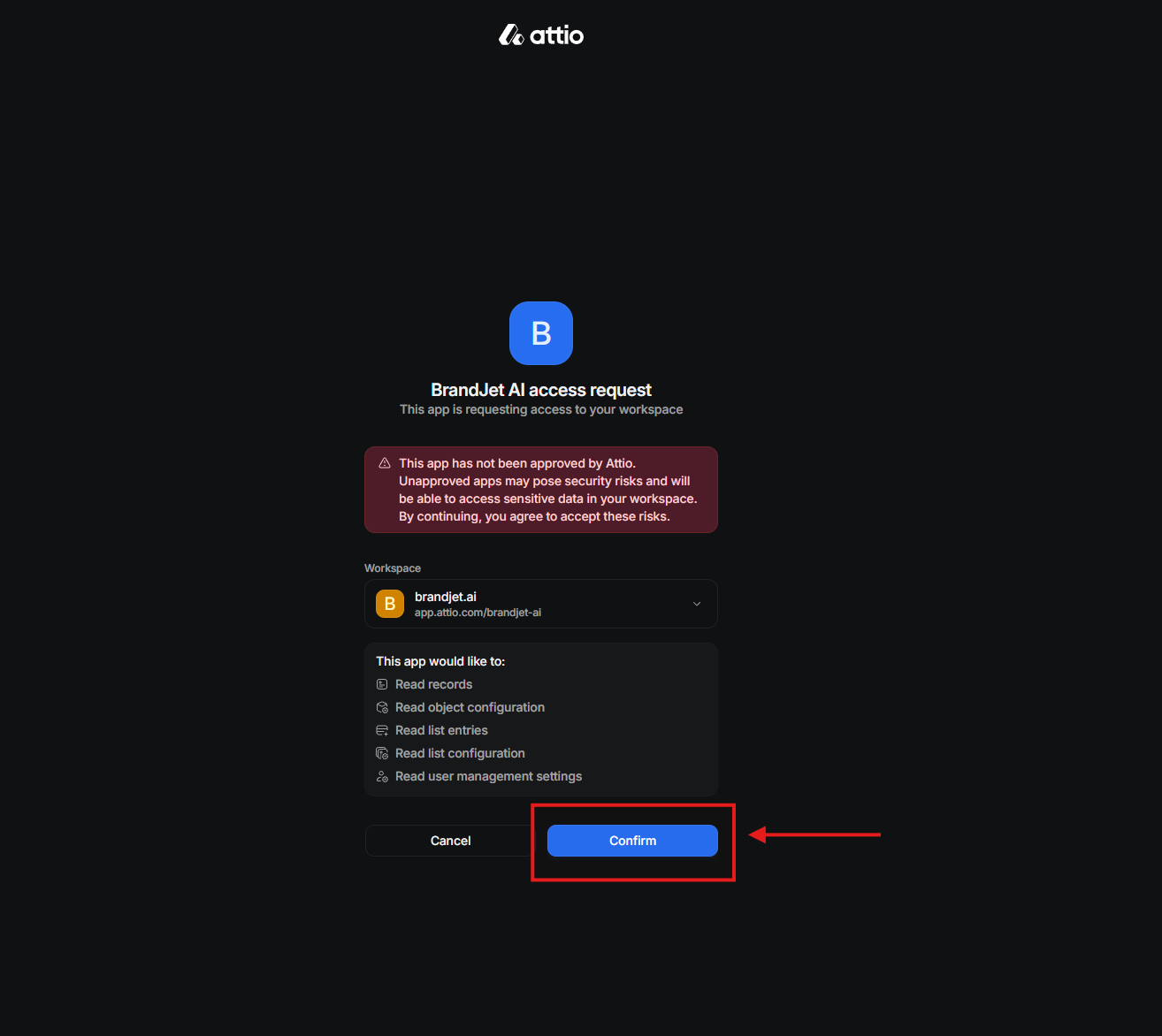
Screenshot 3: Confirm the BrandJet AI access request inside Attio.
Step 5: Finish the Connection
After confirming access, BrandJet AI displays a success message. Press Done to close the confirmation dialog and return to BrandJet AI.
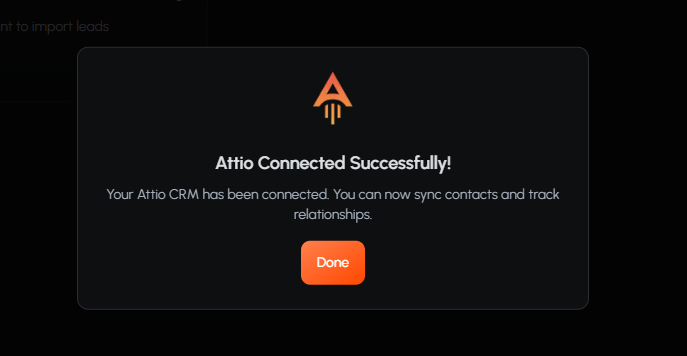
Screenshot 4: Attio connected successfully in BrandJet AI.
How to Import Leads from Attio into BrandJet AI CRM
After the integration is connected, you can import leads from Attio into the BrandJet AI CRM. This import flow lets you choose the CRM source, select Attio, choose the object or list you want to bring in, and continue with the records you want to import.
Step 6: Open the BrandJet AI CRM
Go to https://www.brandjet.ai/crm and open your CRM workspace.
On the CRM page, select Import Leads in the top-right area of the screen.
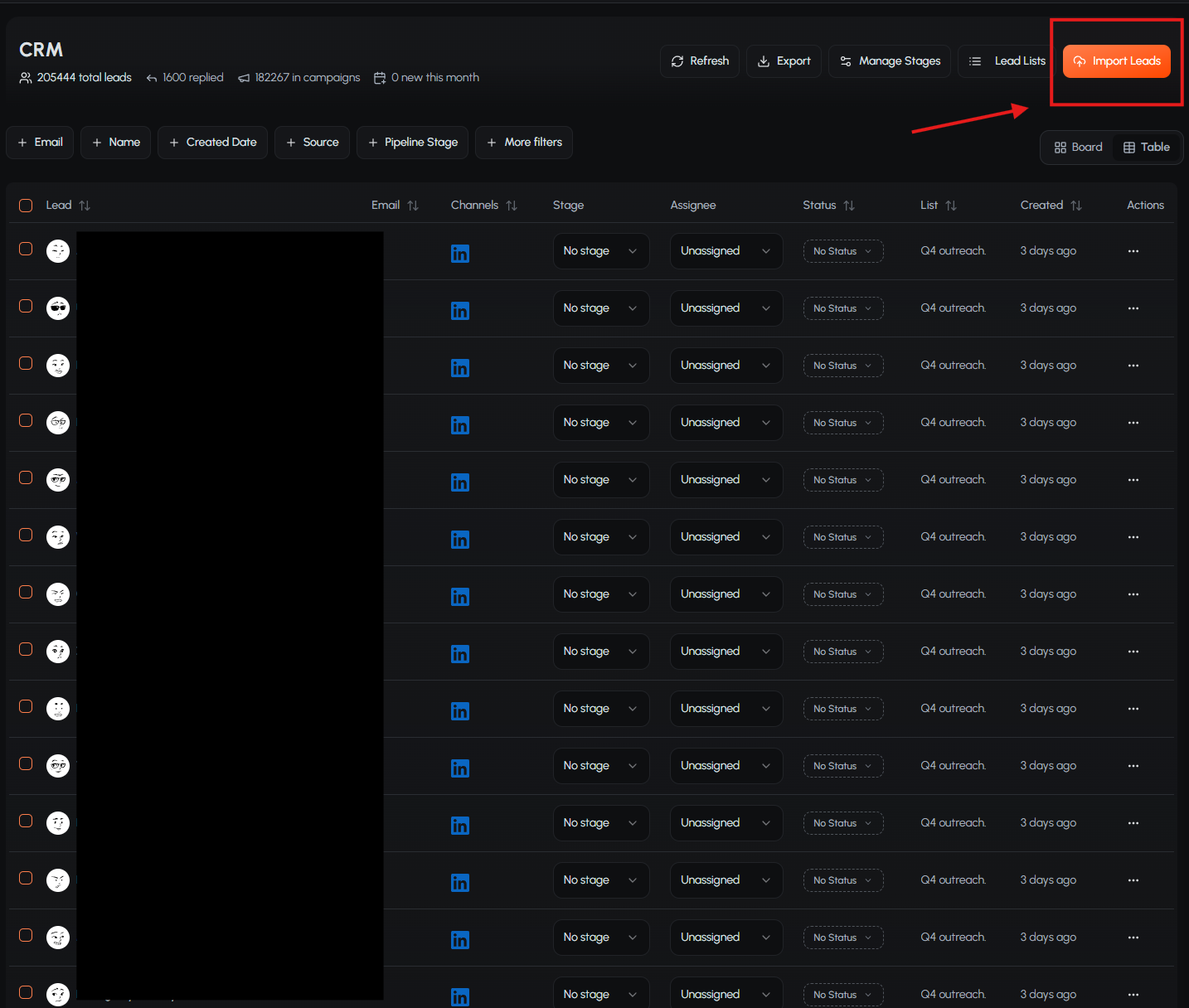
Screenshot 5: Open the CRM page and click Import Leads.
Step 7: Choose CRM Import and Select Attio
In the Import Leads window, choose CRM Import. Attio should appear as a connected CRM source. Select Attio to continue the import process.
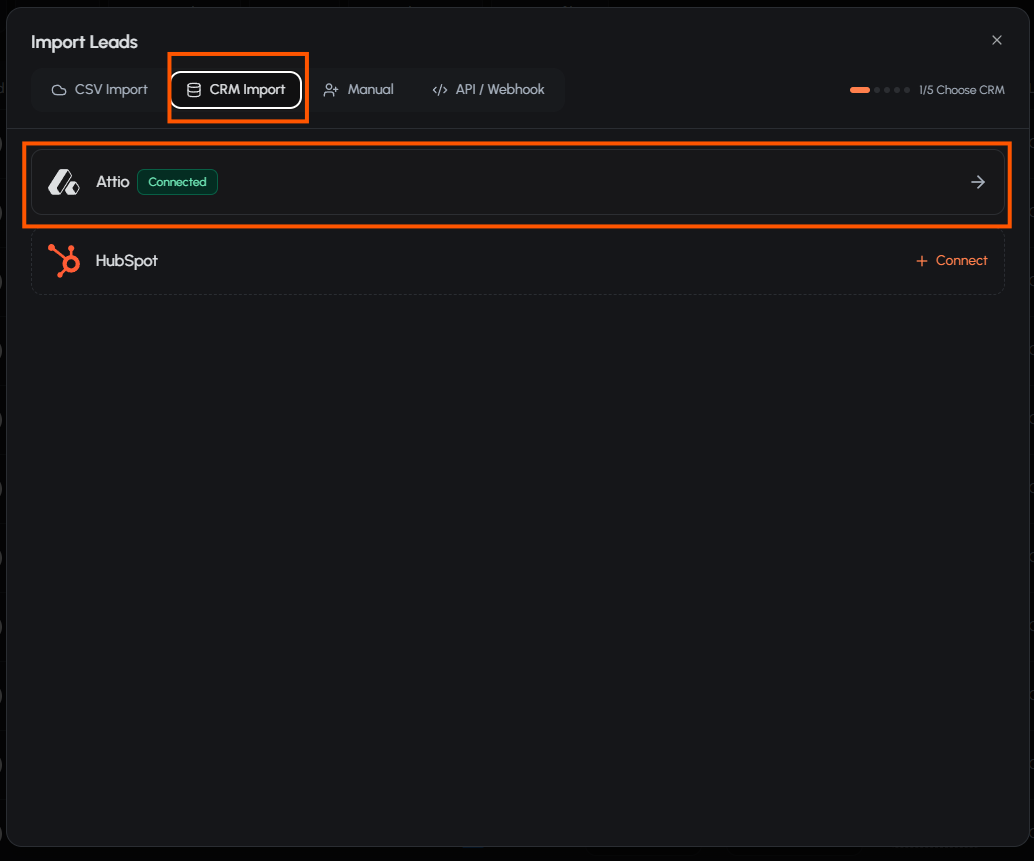
Screenshot 6: Select Attio under the CRM Import option.
Step 8: Choose the Objects or Lists You Want to Import
Next, choose the Attio data source you want to import from. You can select available objects, such as People or Companies, or choose an available Attio list.
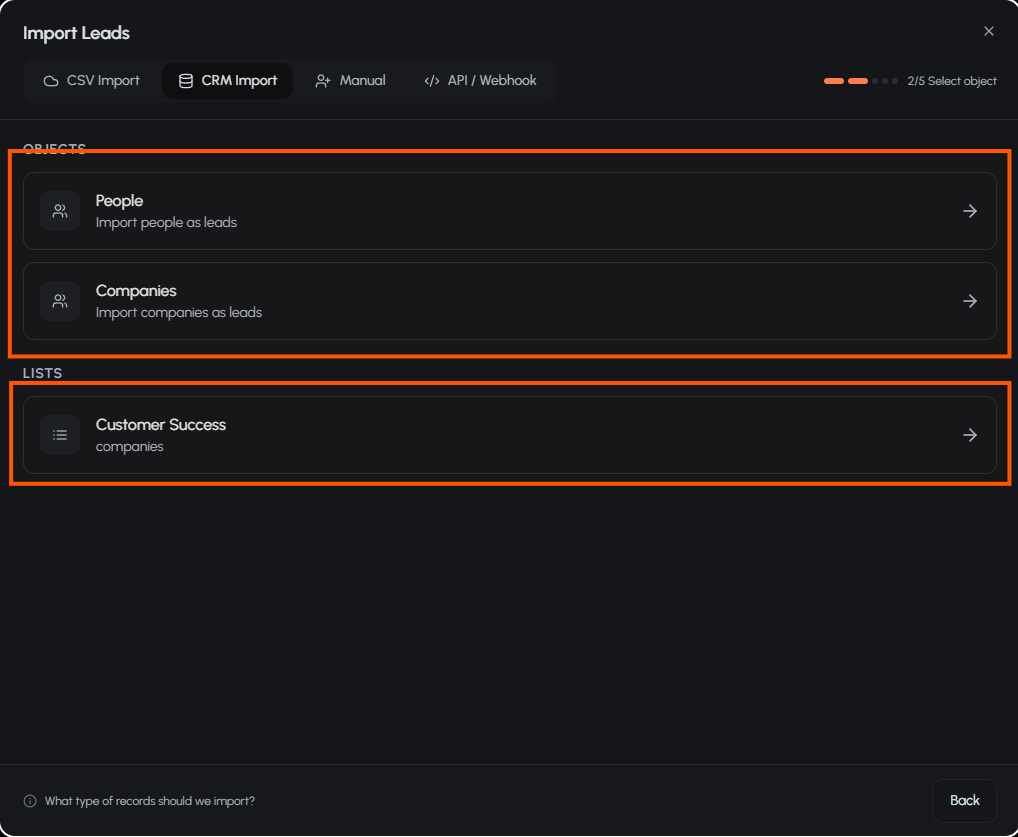
Screenshot 7: Choose Attio objects or lists for the CRM import.
Step 9: Select Records and Continue
After choosing the object or list, select the records you want to import. When your selections are complete, press Continue to move forward with the import.
Best Practice Import only the records you plan to use in BrandJet AI. Keeping imports focused makes your CRM cleaner and easier to manage after the Attio sync. |
|---|
Best Practices for Importing Attio Leads
A clean CRM import helps your team move faster after the integration is complete. Use these best practices before and after bringing Attio records into BrandJet AI.
Choose the right Attio source first. Import People for individual contacts and Companies for account-level records.
Use lists when you want a pre-segmented group of leads from Attio.
Review records before continuing so you do not import unnecessary or outdated leads.
Keep naming conventions consistent across Attio and BrandJet AI to make filtering easier later.
Confirm that your Attio workspace permissions allow the records you need to appear in the import flow.
Common Attio Integration Issues and Quick Fixes
Issue | Likely Cause | Quick Fix |
|---|---|---|
Attio does not show as connected | The OAuth flow was not completed. | Return to Settings > Integrations, enable Attio again, and complete the confirmation step. |
Objects or lists are missing | The connected workspace may not contain the expected records or lists. | Check that the correct Attio workspace was selected during confirmation. |
Records are not available to import | The selected object or list may not include importable records. | Choose another object or list, or review the source data in Attio. |
Import flow stops before completion | A required selection may be missing. | Select an object or list, choose records, and then press Continue. |
Frequently Asked Questions
Do I need to reconnect Attio every time I import leads?
No. Once Attio is connected, it should appear as a connected CRM import source unless access is removed or the integration is disconnected.
Can I import both people and companies from Attio?
Yes. The import flow can show Attio objects such as People and Companies, allowing you to choose the type of CRM records you want to bring into BrandJet AI.
Why does BrandJet AI use OAuth for Attio?
OAuth lets you authorize access through Attio without manually sharing your Attio login credentials inside BrandJet AI.
What should I check before pressing Confirm in Attio?
Check that the correct workspace is selected and that you are comfortable with the permissions shown on the Attio access request screen.
What happens after I select records and continue?
BrandJet AI continues the CRM import workflow using the records you selected from Attio.
Conclusion: Connect Attio Once, Then Import Leads Faster
The BrandJet AI Attio integration gives your team a direct way to move CRM data from Attio into the BrandJet AI CRM. Start by enabling Attio in the Integrations settings, confirm the secure authorization request, and then use Import Leads in the CRM to choose your Attio source and selected records.
Once the connection is active, your import process becomes simpler: choose CRM Import, select Attio, pick the objects or lists you need, select the records, and continue.