
How to Find Your 2FA Secret Key
Follow 7 steps with screenshots to reveal, copy, and activate your X authentication-app secret key.
To securely connect your X (formerly Twitter) account to BrandJet AI, we require your 2FA Secret Key. This allows us to authenticate on your behalf securely without storing your password. This guide will walk you through the process of generating and finding this key in your X account settings.
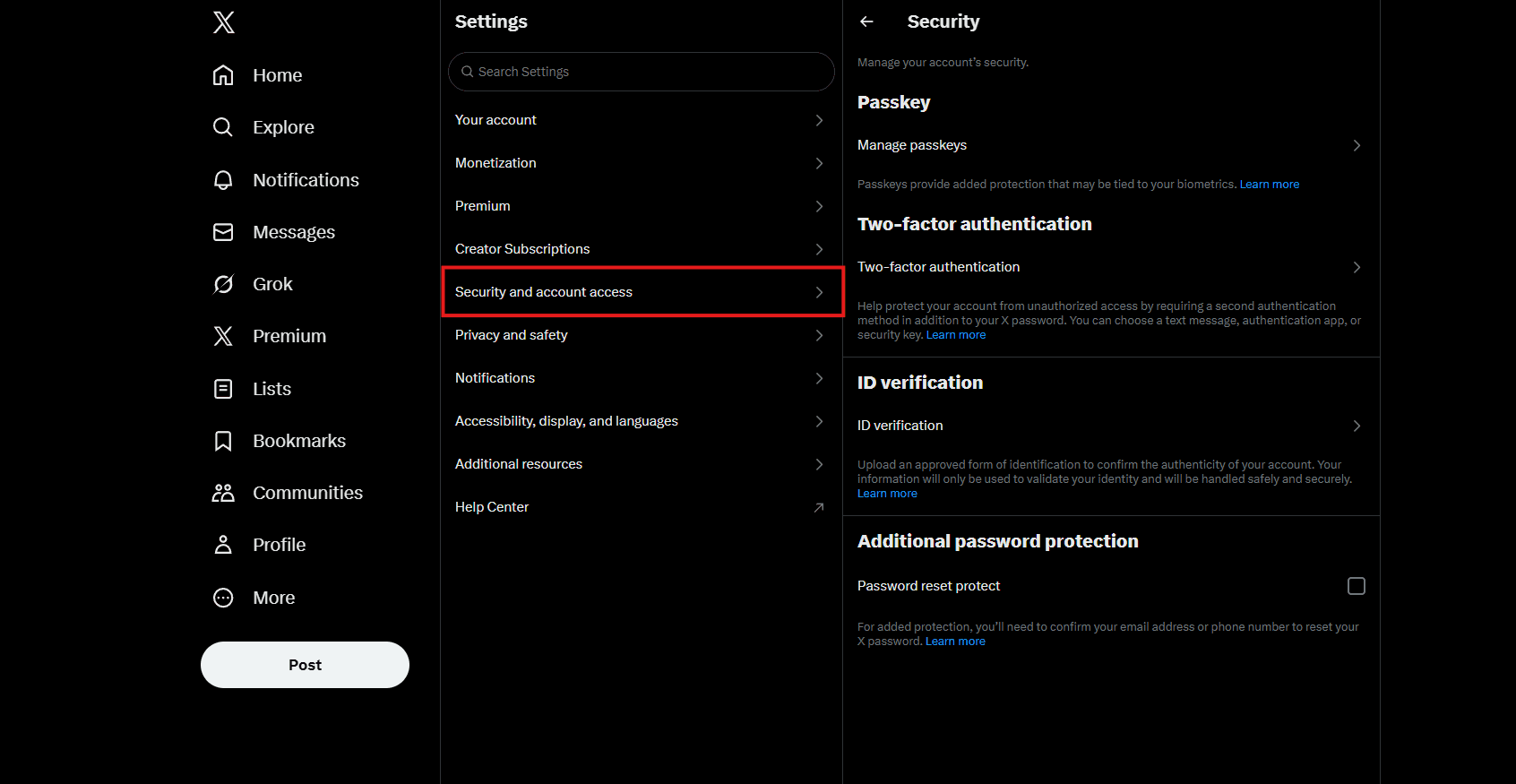
Navigate to Security Settings
Open X (Twitter) in your browser. Click on 'More' in the sidebar, then go to Settings and privacy > Security and account access > Security.
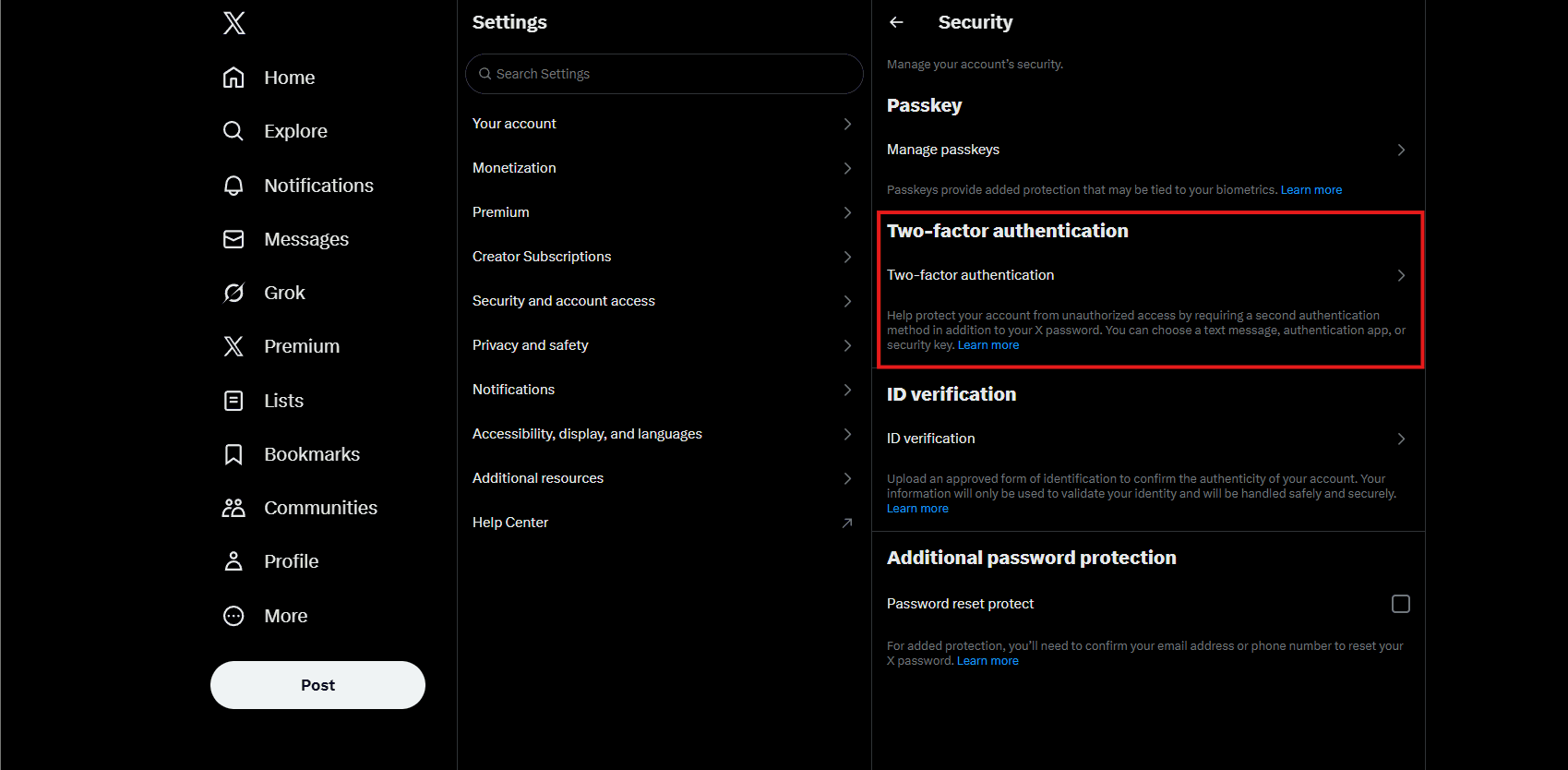
Enable Two-Factor Authentication
Click on 'Two-factor authentication'. If it's not already enabled, you will need to turn it on.
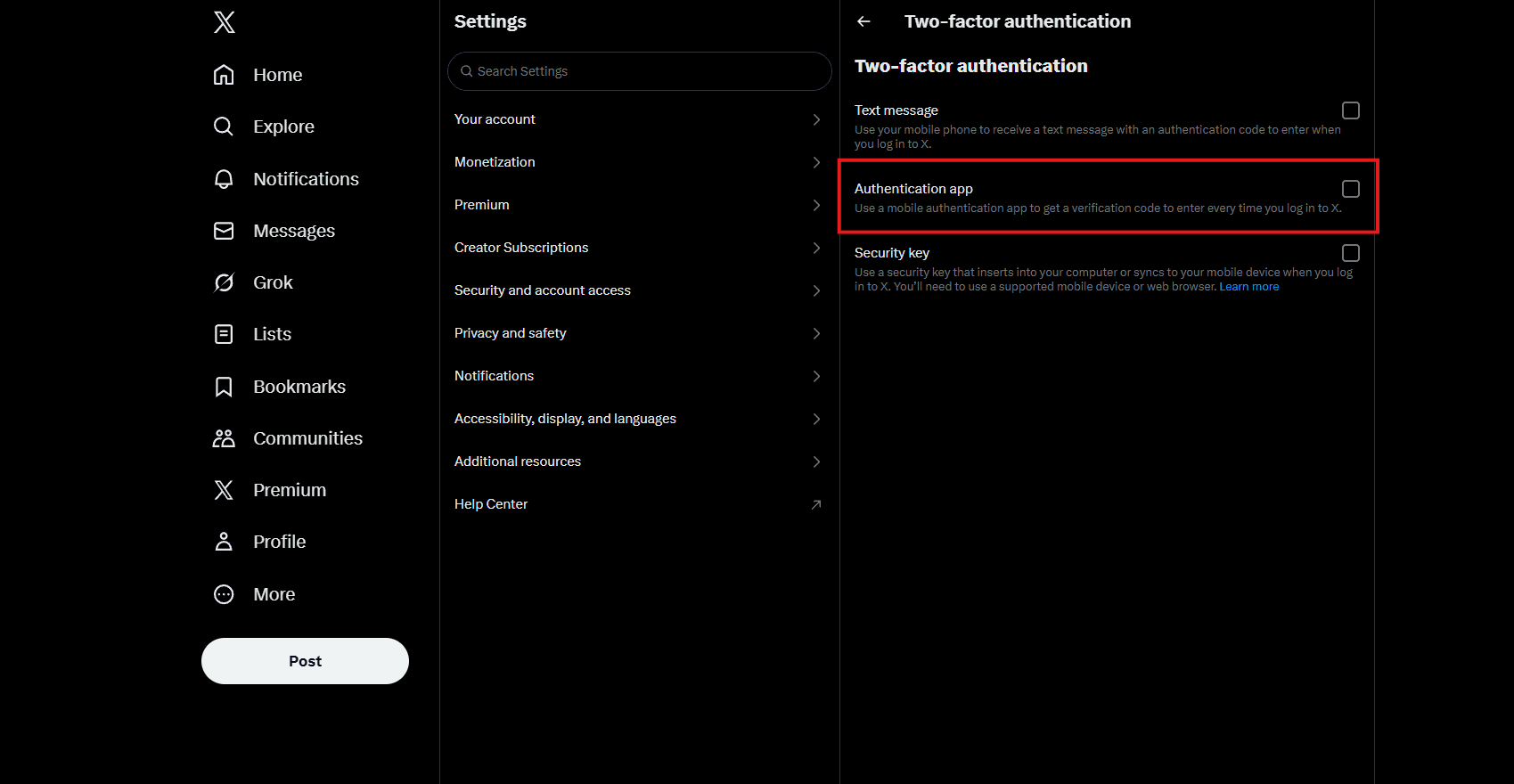
Choose Authentication App Method
Select 'Authentication app' as your method. Even if you already have it set up, you may need to manage it to get a new key or view the existing setup.
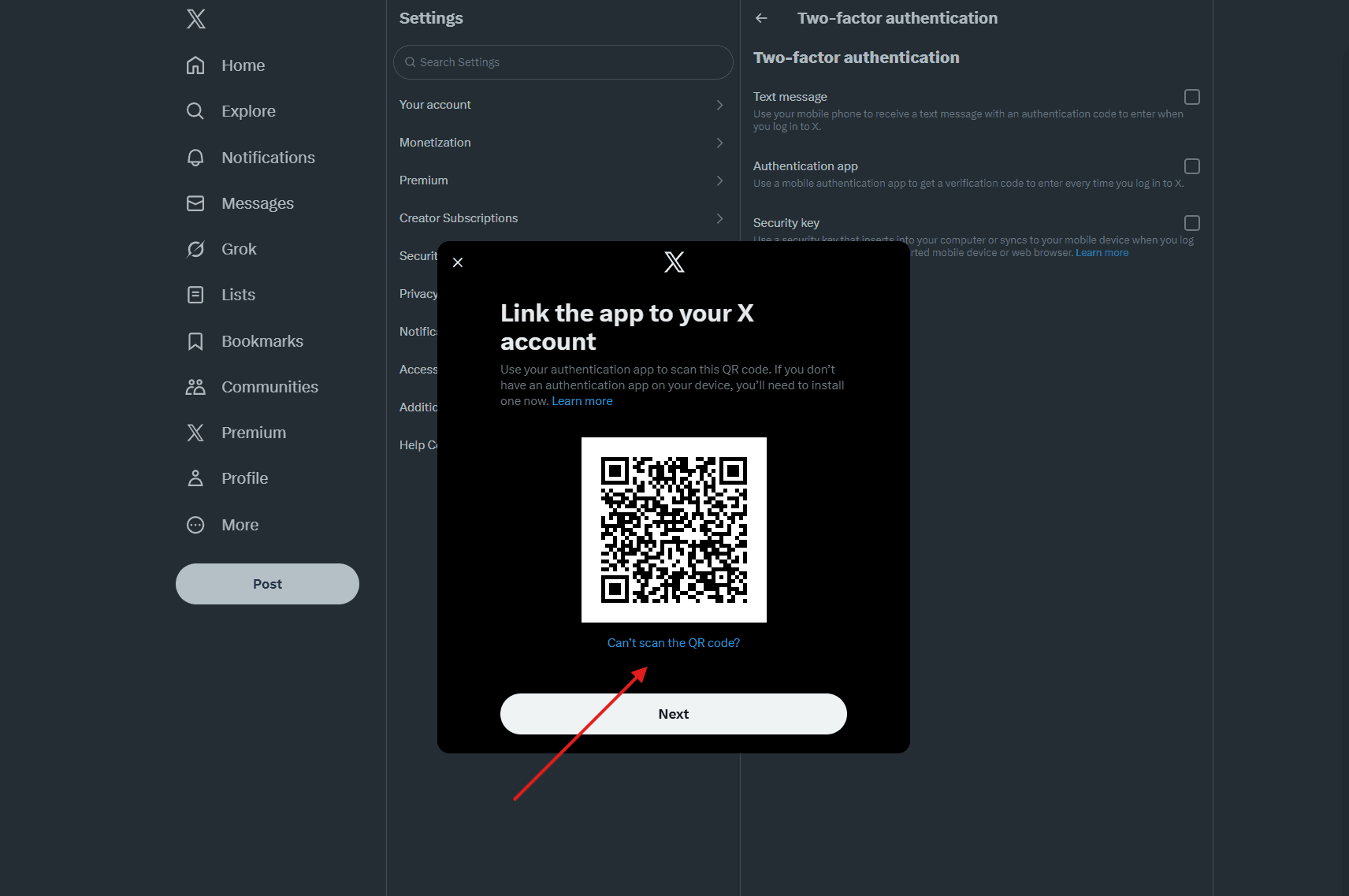
Reveal the Secret Key
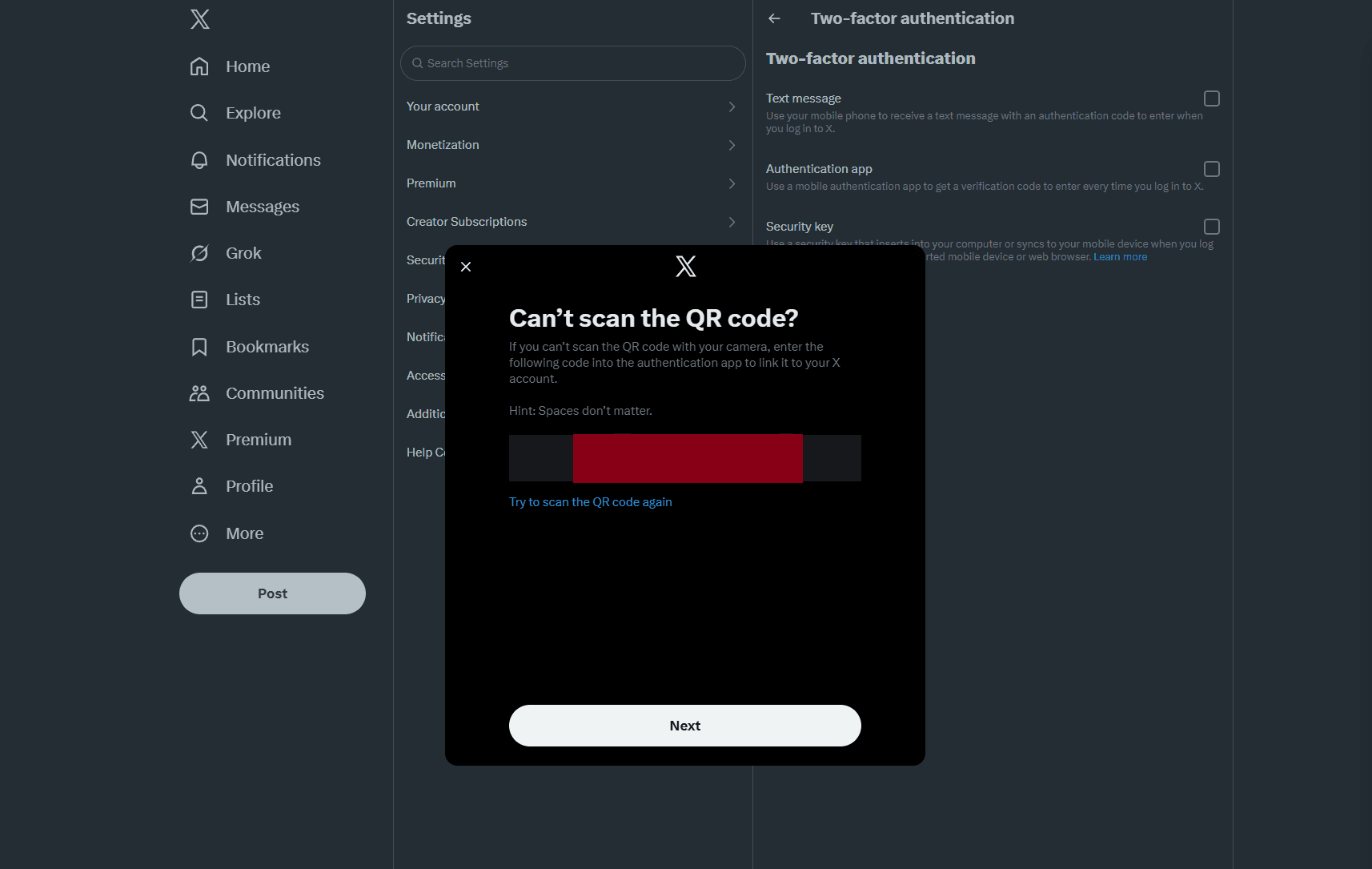
When setting up the authentication app, X will show a QR code. Look for a link that says 'Can't scan the QR code?' or 'Show secret key'. Click it to reveal the alphanumeric code.
Copy the Secret Key
Copy the code displayed. This is your 2FA Secret Key. You will need to paste this into the BrandJet AI connection form.
Scan QR Code
After copying the key, go back to the QR code screen on X. Scan the QR code with your authenticator app to complete the process.
Complete Setup
Enter the verification code from your authenticator app into X to verify and finalize the setup. This ensures the new key is active and linked to your account.
Need more help?
If you're still having trouble connecting your X account, please contact our support team at support@brandjet.ai